Haben Sie noch Fragen? Kontaktieren Sie uns!
Kommen Sie in unser Team!
Kostenloses Angebot oder Beratung anfordern

Revit BIM software shortcuts are keyboard commands that accelerate modeling, drafting, and documentation workflows in Autodesk Revit. Mastering essential shortcuts like DI (aligned dimension), WA (wall), DL (detail line), and VG (visibility graphics) can significantly reduce project time and improve efficiency for BIM professionals working on architecture, engineering, and construction projects.
Autodesk Revit has become the standard BIM authoring tool for architecture, engineering, and construction workflows. But here’s the thing—clicking through ribbons and menus for every command slows down even experienced professionals.
Keyboard shortcuts transform how quickly models get built, documentation gets produced, and coordination issues get resolved. The difference between hunting for a command in the ribbon versus typing two letters? That adds up to hours saved across a project lifecycle.
According to Autodesk’s official keyboard shortcuts guide, Revit includes hundreds of built-in commands spanning annotation, modeling, visualization, and system tools. Learning even a fraction of these dramatically improves productivity.
Why Revit Keyboard Shortcuts Matter for BIM Workflows
Professional BIM environments measure productivity by coordination efficiency and deliverable quality, not mouse clicks. Keyboard shortcuts directly impact both metrics.
When modeling complex geometries or annotating construction documents, every second counts. Shortcuts reduce the cognitive load of navigating nested menus, allowing professionals to focus on design decisions rather than software mechanics.
Real-world coordination involves constant view switching, element selection, and property modifications. Shortcuts make these repetitive tasks nearly instantaneous.
The learning curve pays dividends quickly. A professional who masters 20-30 core shortcuts can work more efficiently than someone relying exclusively on mouse navigation and ribbon menus.
Add BIM Capacity Without Expanding Your Team

Powerkh helps companies handle BIM production work when internal resources are limited. Its services cover modeling, coordination, detailing, automation, and point cloud processing, allowing teams to keep projects moving without adding new hires.
Need Extra BIM Support?
Talk with Powerkh to:
- extend your team with BIM specialists
- handle modeling and documentation tasks
- support ongoing project delivery
👉 Contact Powerkh for a project review and consultation.
Essential Revit Shortcuts Every BIM Professional Should Know
The official Autodesk documentation organizes Revit shortcuts into functional categories. Starting with these fundamental commands builds a solid foundation.
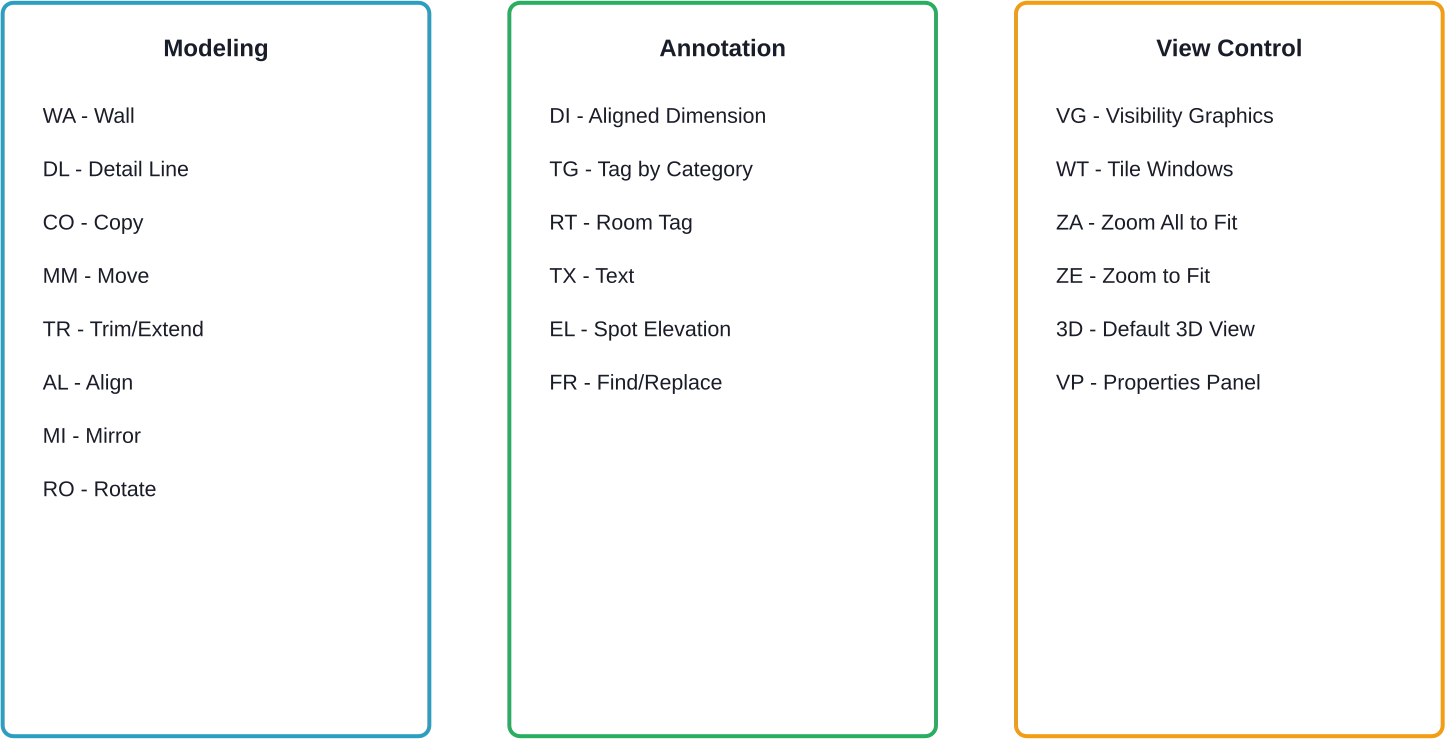
Modeling and Drafting Shortcuts
These shortcuts control the core modeling operations that define building geometry.
- WA creates walls—the most frequently used architectural element. Instead of clicking the Architecture tab, then the Wall button, typing WA launches the command immediately.
- DL activates detail lines for view-specific 2D annotations. This becomes essential when drafting details that shouldn’t appear in 3D views.
- CO copies selected elements, while MM moves them. Combined with array tools, these shortcuts accelerate repetitive placement tasks.
- TR trims or extends elements to boundaries. For quickly cleaning up wall intersections or adjusting line endpoints, this beats manual deletion and redrawing.
- AL aligns elements along selected references. Precision alignment without numeric input saves time during layout operations.
Annotation and Documentation Shortcuts
Documentation workflows rely heavily on dimensioning, tagging, and text placement.
- DI creates aligned dimensions between selected references. For architectural plans and sections, this single shortcut handles the majority of dimensioning needs.
- TG applies tags by category. Select a door, type TG, and the appropriate door tag appears. Same for windows, walls, rooms, or any tagged family.
- RM launches the Room tool, while RM (or Tag Room) is the standard for placing rooms with tags.
- TX places text annotations. Notes, callouts, and general text all start with this command.
- EL creates spot elevations showing the height of selected points. Critical for topography, foundations, and finish floor documentation.
View Management Shortcuts
Navigating between views and controlling their display settings comprises a significant portion of daily Revit work.
- VG opens visibility/graphics overrides—arguably one of the most used commands in Revit. Controlling category visibility, graphic overrides, and halftone settings happens through this dialog.
- WT tiles open windows, allowing simultaneous viewing of plan, section, and 3D views. Essential for coordination and cross-referencing.
- ZA zooms all views to fit their contents, while ZE zooms only the active view. Quick view fitting prevents hunting for elements outside the current zoom window.
- 3D opens the default 3D view. When working primarily in plans, a quick 3D check verifies spatial relationships and catches modeling issues.
Advanced Shortcuts for Power Users
Beyond the basics, advanced shortcuts unlock specialized workflows and system-level tools.
Selection and Filtering
Complex models contain thousands of elements. Efficient selection separates fast modelers from frustrated ones.
- Tab cycles through overlapping elements before clicking. Hover over a wall-window-door intersection, tap Tab repeatedly, and watch Revit highlight each element. Click when the desired element highlights.
- Ctrl+left click adds elements to the selection set. Shift+left click removes them. Building complex selection sets without filters becomes manageable.
- After selecting elements, pressing Escape once deselects them. Pressing Escape again cancels the active command. Many users click empty space instead—less efficient.
System and Structural Shortcuts
MEP and structural engineers have specialized shortcuts matching their discipline-specific tools.
- DU creates ductwork in mechanical systems. PI draws pipes for plumbing or fire protection. CT places cable trays for electrical coordination.
- ME places mechanical equipment like boilers or air handlers. EE adds electrical equipment including panels and switchgear.
- LF inserts lighting fixtures—essential for electrical design and photometric analysis.
- Structural professionals use BM for beams, CL for structural columns, and BR for bracing. These elements follow specific placement rules and connection requirements that differ from architectural components.
| Discipline | Shortcut | Command | Typical Use Case |
|---|---|---|---|
| Mechanical | DU | Duct | HVAC distribution systems |
| Mechanical | ME | Mechanical Equipment | Placing boilers, fans, AHUs |
| Klempnerarbeiten | PI | Pipe | Water supply, drainage, fire protection |
| Electrical | CT | Cable Tray | Power and data distribution |
| Electrical | LF | Lighting Fixture | Lighting design and layout |
| Structural | BM | Beam | Horizontal structural framing |
| Structural | CL | Column | Vertical structural support |
Customizing Keyboard Shortcuts in Revit
The default shortcuts cover common operations, but every professional has unique workflow patterns. Revit allows complete shortcut customization.
Access keyboard shortcut customization through KS (ironically, itself a shortcut). This opens the Keyboard Shortcuts dialog showing all available commands and their current assignments.
The interface lists commands alphabetically with search filtering. Finding specific commands in the hundreds available would be tedious without filtering.
Assigning a new shortcut requires typing the desired key combination in the Press New Shortcuts field. Revit immediately shows if that combination is already assigned. Conflicts require choosing between the existing command and the new assignment.
But here’s the thing—not every command needs a shortcut. Frequently used tools deserve shortcuts. Commands used monthly? The ribbon works fine.
Export shortcut configurations to share across teams. Standardized shortcuts improve collaboration when multiple professionals work in the same models.
Strategic Shortcut Customization
Which commands deserve custom shortcuts depends on project types and personal roles.
Residential architects placing countless doors and windows might assign DR and WN to their most common door and window types, bypassing the family selection step.
MEP engineers coordinating complex services might create shortcuts for filter view creation, since they constantly toggle between architectural, structural, and discipline-specific views.
Visualization specialists rendering client presentations could assign shortcuts to specific view templates, camera angles, or rendering quality presets.
The pattern? Shortcuts should eliminate repetitive clicks for high-frequency tasks specific to a role or project phase.
Productivity Shortcuts Beyond Commands
Not all productivity gains come from modeling or annotation commands. Navigation, selection, and interface management shortcuts matter equally.
Properties Panel and Project Browser
PP (or Ctrl+1 oder VP) toggles the Properties palette. Three different shortcuts for the same command reflects how critical property access is.
When the Properties palette clutters the screen during dense modeling work, hiding it recovers screen real estate. When reviewing element properties, displaying it provides immediate access.
The Project Browser can be toggled using the default shortcut PB, Alt+F4 closes Revit entirely—worth knowing to avoid.
Temporary Override Shortcuts
Holding modifier keys during commands activates temporary overrides without permanently changing settings.
- Hold Shift while starting most modeling commands to chain multiple instances. Place one wall, finish at a point, and immediately start the next wall from that point without restarting the command.
- Hold Ctrl during element selection to add or remove from selection sets without deselecting everything first.
- During move or copy operations, typing a distance value then pressing Enter moves or copies precisely that distance. No need to draw reference lines or temporary dimensions.
Common Mistakes When Learning Revit Shortcuts
Learning shortcuts effectively requires avoiding several common pitfalls that actually reduce productivity.
Trying to Memorize Everything at Once
Revit contains hundreds of shortcuts. Attempting to memorize them all creates confusion and frustration.
Instead, start with five to ten shortcuts for the absolute most frequent operations. Use them exclusively for a week until they become automatic. Then add five more.
Muscle memory develops through repetition, not through reading shortcut lists. Active use, not passive review, builds proficiency.
Creating Illogical Custom Shortcuts
Custom shortcuts should be memorable. Assigning random letter combinations defeats the purpose.
Good custom shortcuts use mnemonic associations. WA for wall works because it abbreviates the command name. Assigning wall to QZ would require constant mental translation.
When commands lack obvious abbreviations, choose keys physically near each other for related operations. Grouping related commands by keyboard location creates spatial memory.
Ignoring Context-Specific Shortcuts
Many shortcuts only work in specific contexts or view types. DL for detail lines only works in 2D views. Trying to use it in 3D views generates errors.
Similarly, some shortcuts activate only when certain elements are selected. Understanding these contexts prevents confusion when shortcuts appear not to work.
Neglecting the Properties Palette Toggle
The Properties palette provides essential information, but it also occupies significant screen space. Users often either keep it permanently open or permanently closed.
Neither approach maximizes efficiency. Toggle it on when reviewing or modifying properties, then hide it during modeling to maximize drawing area. The PP shortcut makes this switch effortless.
Workflow Integration Strategies
Shortcuts deliver maximum value when integrated into complete workflows rather than used in isolation.
Template View Creation Workflow
Creating documentation views requires multiple steps: duplicate view, rename, apply view template, adjust crop region, set detail level.
Without shortcuts: right-click in Project Browser, click Duplicate View, click Duplicate with Detailing, click the view name to rename, type new name, right-click, select Apply Template, choose template from list, adjust crop boundaries manually, change detail level in View Control Bar.
With shortcuts: right-click in Project Browser (unavoidable), click Duplicate with Detailing, type new name immediately (the view name is already selected), VP to open Properties, select view template from dropdown, Esc to close Properties, draw new crop region, VP again, change detail level, Esc.
The difference? Roughly 30% fewer clicks and significantly less mouse movement. Across dozens of views per project, that compounds quickly.
Coordination Issue Resolution Workflow
Coordination involves finding clashes, adjusting elements, and verifying fixes across multiple disciplines.
A typical workflow: open coordination view, identify clash, 3D to see spatial context, adjust element position with MM, switch back to coordination view with Ctrl+Tab (window switching), verify clearance, VG to toggle discipline visibility, check other trades, document resolution.
Every step potentially saves 2-5 seconds. Multiply by hundreds of coordination issues per project phase, and shortcuts become the difference between finishing on schedule or working overtime.
Shortcuts for Specific BIM Roles
Different roles in BIM workflows prioritize different commands. Architects, engineers, and BIM managers have distinct needs.
Architekten und Planer
Design professionals spend most time on massing, space planning, and design development.
Priority shortcuts: WA (wall), DR (door), WN (window), FL (floor), RF (roof), RM (room), CO (copy), MM (move), AL (align).
These commands cover the majority of schematic and design development tasks. Adding VG for presentation views and 3D for perspective checks rounds out the essential set.
MEP-Ingenieure
Systems design requires specialized tools for ductwork, piping, cable tray, and equipment placement.
Priority shortcuts: DU (duct), PI (pipe), CT (cable tray), ME (mechanical equipment), EE (electrical equipment), LF (lighting fixture), FD (flex duct), FP (flex pipe).
System routing and equipment coordination happen constantly. Dedicated shortcuts for these operations eliminate the need to navigate through multiple ribbon panels.
BIM Managers and Coordinators
BIM management focuses on view creation, template management, family loading, and coordination workflows.
Priority shortcuts: VG (visibility graphics), WT (tile windows), KS (keyboard shortcuts—for helping others), VP (properties), view navigation shortcuts, and custom shortcuts for frequently applied view templates.
Managing complex models requires constant view manipulation and property modification. These shortcuts accelerate administrative BIM tasks that don’t directly create geometry but ensure model quality.
| Rolle | Top 5 Essential Shortcuts | Warum sie wichtig sind |
|---|---|---|
| Architect | WA, DR, WN, CO, VG | Core building elements and visualization control |
| Hochbauingenieur | BM, CL, BR, DI, CO | Framing placement and dimensional accuracy |
| MEP Engineer | DU, PI, CT, ME, VG | System distribution and equipment coordination |
| Interior Designer | RM, CO, WA, FF, VG | Space planning and finish specification |
| BIM-Manager | VG, WT, VP, KS, ZA | View management and quality control |
Advanced Tips from Professional Users
Community discussions on platforms like LinkedIn and buildingSMART forums reveal professional techniques that go beyond official documentation.
Chaining Commands for Complex Operations
Many operations require multiple commands in sequence. Planning these sequences reduces errors and rework.
When creating dimensioned floor plans: WA to place walls, Tab to select all walls of a type, FT (filter) to refine selection, DI to dimension, TG to tag doors and windows, RT for room tags.
This sequence becomes a rhythm. Muscle memory replaces conscious thought, allowing focus on design intent rather than command execution.
Using Shortcuts During Live Coordination Meetings
When presenting models during coordination meetings, smooth navigation and quick adjustments maintain meeting momentum.
Searching through ribbons while stakeholders wait kills credibility and wastes billable time. Shortcuts allow real-time model modifications and view adjustments without awkward pauses.
WT for tiling views, VG for toggling discipline visibility, 3D for spatial context, and ZA for fitting content to screen become essential presentation tools.
Leveraging Selection Memory
After deselecting elements, Ctrl+left click in empty space doesn’t just clear selection—it remembers the previous selection.
To reselect the previous selection set, use the Ctrl + Left Arrow shortcut.
Troubleshooting Common Shortcut Issues
Sometimes shortcuts don’t work as expected. Understanding why prevents frustration.
Shortcuts Not Responding
When typing a shortcut produces no result, several causes exist.
First, check whether another command is active. Shortcuts don’t work during active commands. Press Esc twice to ensure all commands are cancelled, then try again.
Second, verify focus is in the drawing area, not the Properties palette or Project Browser. Click in the drawing area before using shortcuts.
Third, some shortcuts only work in specific view types or with specific elements selected. Detail line shortcuts require 2D views. Structural shortcuts require structural views or work planes.
Shortcut Conflicts with Add-ins
Third-party add-ins sometimes override Revit’s default shortcuts. If a previously working shortcut stops functioning after installing an add-in, check the add-in’s shortcut assignments.
Some add-ins allow shortcut customization. Others require contacting the developer for resolution.
Custom Shortcuts Not Saving
Custom shortcuts export to XML files stored in the Revit user profile directory. If shortcuts don’t persist between sessions, the export file may not have write permissions.
Check the file location and ensure the user account has appropriate permissions. In corporate environments with locked-down profiles, IT may need to adjust permissions.
Learning Resources and Practice Techniques
Mastering shortcuts requires deliberate practice, not just passive reading.
Official Autodesk Resources
Autodesk provides a downloadable PDF of all Revit keyboard shortcuts. This reference document lists every default shortcut organized by category.
The official Autodesk help documentation includes detailed explanations of each command, including context requirements and typical use cases.
According to the official Autodesk Revit keyboard shortcuts guide, commands span Annotate, Analyze, Architecture, Collaborate, Manage, Modify, Structure, System, and View categories. Each category contains dozens of shortcuts for specific operations.
Practical Learning Approaches
Print a shortcut reference and keep it visible next to the monitor. When reaching for the mouse to access a command, glance at the reference instead. Force shortcut use even when it feels slower initially.
Set a personal rule: use shortcuts exclusively for one week. Avoid the ribbon entirely for commands that have shortcuts. This artificial constraint accelerates learning.
Practice on personal projects or tutorial files, not live client work. Learning new shortcuts during deadline-sensitive projects creates stress and errors.
Creating Personal Shortcut Reference Cards
The full shortcut list is too long to memorize. Create personal reference cards with only the 20-30 shortcuts relevant to specific workflows.
Physical index cards work well—different colors for different categories. Digital notes on a second monitor provide quick reference without switching windows.
Update the reference cards as shortcuts become automatic. Replace mastered shortcuts with new ones to gradually expand the working set.
Integration with Other BIM Tools
Revit doesn’t exist in isolation. BIM workflows involve multiple software platforms, each with their own shortcuts.
Consistency Across Autodesk Products
Many shortcuts remain consistent across Autodesk’s AEC collection. CO for copy, MM for move, and RO for rotate work in AutoCAD, Revit, and Civil 3D.
This consistency reduces the learning curve when working across multiple platforms. Professionals familiar with AutoCAD already know many Revit shortcuts.
Complementary Software Workflows
BIM coordination often involves exporting to Navisworks for clash detection, then returning to Revit for corrections.
Maintaining similar keyboard habits across both platforms improves efficiency. While Navisworks shortcuts differ, establishing consistent patterns (like using numeric shortcuts for view types) creates transferable muscle memory.
Future of Shortcuts in BIM Software
As BIM software evolves, the role of keyboard shortcuts continues adapting.
Voice Commands and AI Integration
Emerging technologies like voice recognition could supplement or partially replace keyboard shortcuts. Saying “create wall” might eventually trigger commands faster than typing shortcuts.
Voice commands face practical challenges in workplace environments and with technical terminology. Keyboard shortcuts remain the standard for precise BIM command execution.
Context-Aware Command Prediction
Machine learning could predict the next likely command based on workflow patterns, suggesting shortcuts or automatically activating commands.
This technology exists in other software domains. BIM platforms may eventually incorporate similar predictive interfaces that reduce the need to memorize shortcuts.
Until then, manual shortcut learning remains the most effective productivity enhancement for Revit users.
Measuring Productivity Impact
Quantifying the value of shortcuts helps justify the learning investment.
Time Studies and Benchmarks
Individual command time differences seem trivial—2 seconds saved per command execution. But frequency matters.
A professional executing 200 commands per day saves 400 seconds (6.7 minutes) per day. Over a year, this time savings accumulates significantly.
For teams of 10 professionals, the collective time savings scales to meaningful project impact. The return on learning investment is substantial.
Error Reduction Benefits
Beyond speed, shortcuts reduce errors. Navigating through ribbon panels introduces more opportunities to click the wrong tool.
Shortcuts create direct command execution with fewer intermediate steps. Fewer steps mean fewer error opportunities.
Schlussfolgerung
Revit keyboard shortcuts represent one of the highest-return productivity investments for BIM professionals. The difference between clicking through ribbon panels and typing two-letter commands compounds across thousands of daily operations.
Start with core commands like WA, DI, VG, and PP. Build muscle memory through deliberate practice over several weeks. Gradually expand to role-specific shortcuts for architectural, structural, or MEP work. Customize shortcuts for personal workflow patterns once the defaults become automatic.
The time investment is modest—a few weeks of conscious practice. The productivity returns last throughout a career. Every BIM professional working in Revit should prioritize shortcut mastery as a foundational skill.
Ready to accelerate Revit workflows? Download the official Autodesk keyboard shortcuts PDF, select 10 essential commands for current project needs, and commit to using only shortcuts for those commands for the next two weeks. The productivity gains will speak for themselves.
Häufig gestellte Fragen
What are the most important Revit shortcuts to learn first?
Start with core commands used daily: WA (wall), DI (aligned dimension), TG (tag by category), VG (visibility graphics), and PP (properties toggle). These cover modeling, annotation, and view control.
How do I customize keyboard shortcuts in Revit?
Type KS to open the Keyboard Shortcuts dialog. Search for a command, enter a new key combination, and click Assign. Save changes and optionally export your shortcut setup for reuse.
Do Revit shortcuts work the same across all versions?
Most core shortcuts remain consistent, but new features introduce new commands. Some shortcuts may differ between versions, so it’s best to rely on widely supported commands when working across versions.
Can I use shortcuts during collaboration sessions?
Yes. Shortcuts function normally in workshared models and cloud collaboration. They only affect your local workflow and can help speed up coordination and real-time updates.
Why aren’t my shortcuts working in Revit?
Common issues include active commands blocking input, focus outside the drawing area, context limitations, or shortcut conflicts. Press Esc to reset commands and verify assignments in the Keyboard Shortcuts dialog.
Are there shortcuts for MEP-specific commands?
Yes. Examples include DU (duct), ME (mechanical equipment), PI (pipe), CT (cable tray), and LF (lighting fixture). These are grouped by discipline in Revit’s shortcuts list.
How long does it take to become proficient with Revit shortcuts?
Basic fluency with key shortcuts usually takes 2-3 weeks of regular use. Broader proficiency develops over 1-2 months, while advanced mastery can take several months as habits and workflow efficiency improve.

Unsere Fallstudien
Wir haben mehr als 200 BIM- und VDC-Projekte für Gewerbe, Industrie und Wohnungsbau durchgeführt.
Unsere Arbeit umfasst:
Automatisierung der Schalungsplanung
Our client from
California, USA
Automatisierung von abgehängten Decken
Our client from
New York, USA
Automatisierung von Wandkonstruktionen
Our client from
California, USA